Events
Adding buttons to your page
Share files and links with your guests using customizable buttons.
The primary button
The primary button stays fixed at the top of the page for extra emphasis. You can configure it by adding a name and color and attaching a link or file. Click Add File or Link and select the file (image or PDF) or link you'd like to attach.
To set the button color, use the swatches or open our color palette to create your own custom color. (Note: if the donation or on-site sales button is enabled, it will replace the primary button.)
Creating additional buttons
To add more buttons, scroll to the Buttons section, click Add Button, and start creating. Enter a name in the text field and assign a file or link to each button.
Reorder: Click and hold the drag icon on the left side of the button container, then drag it wherever you like.
Hide: Toggle the display switch on or off to control visibility.
Delete: Click the trash can icon to remove a button.
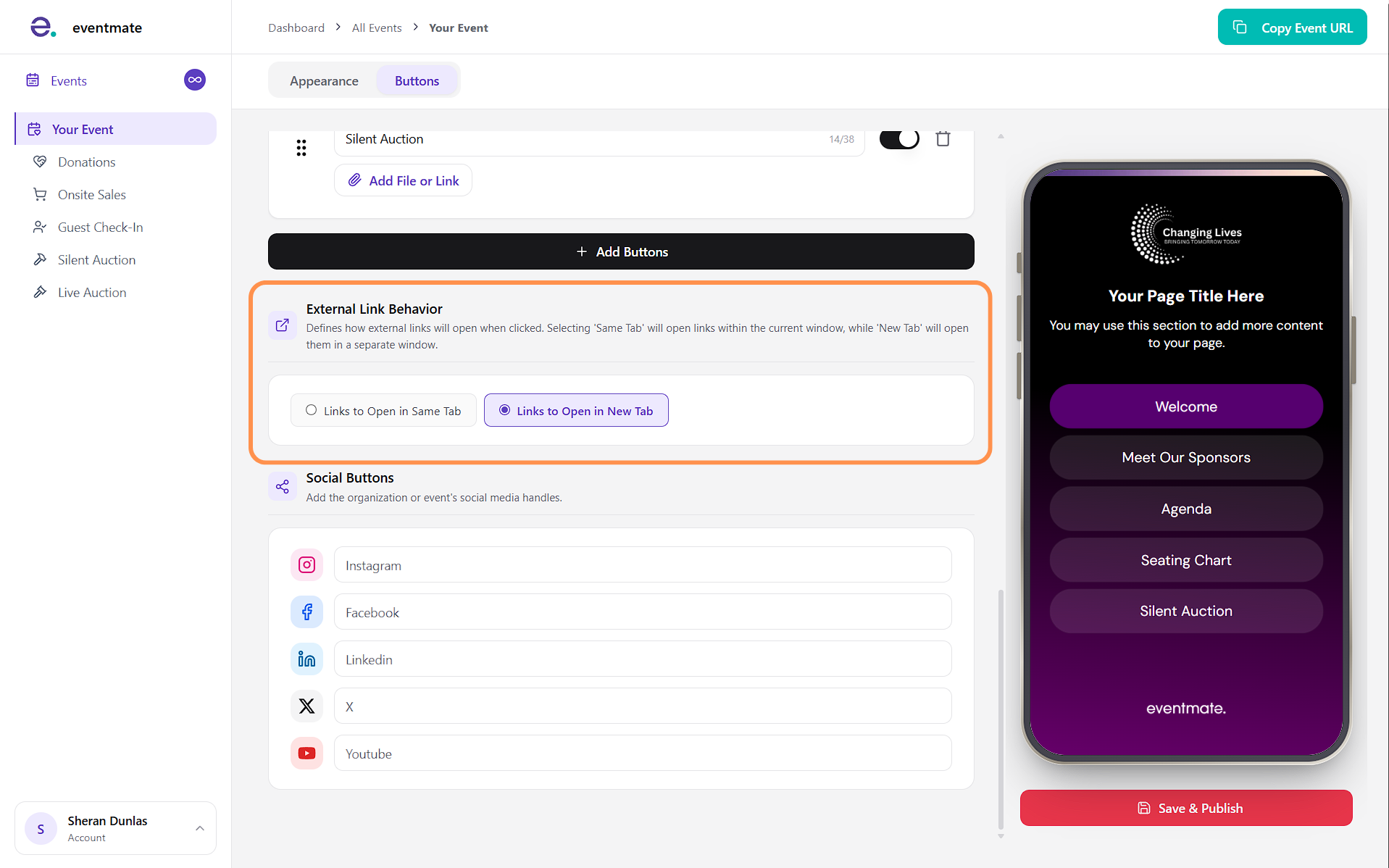
Controlling how links open
For buttons with links assigned, you can control how they open when clicked. Open in same tab directs the user to the new page within the current window, while Open in new tab opens it in a separate window.
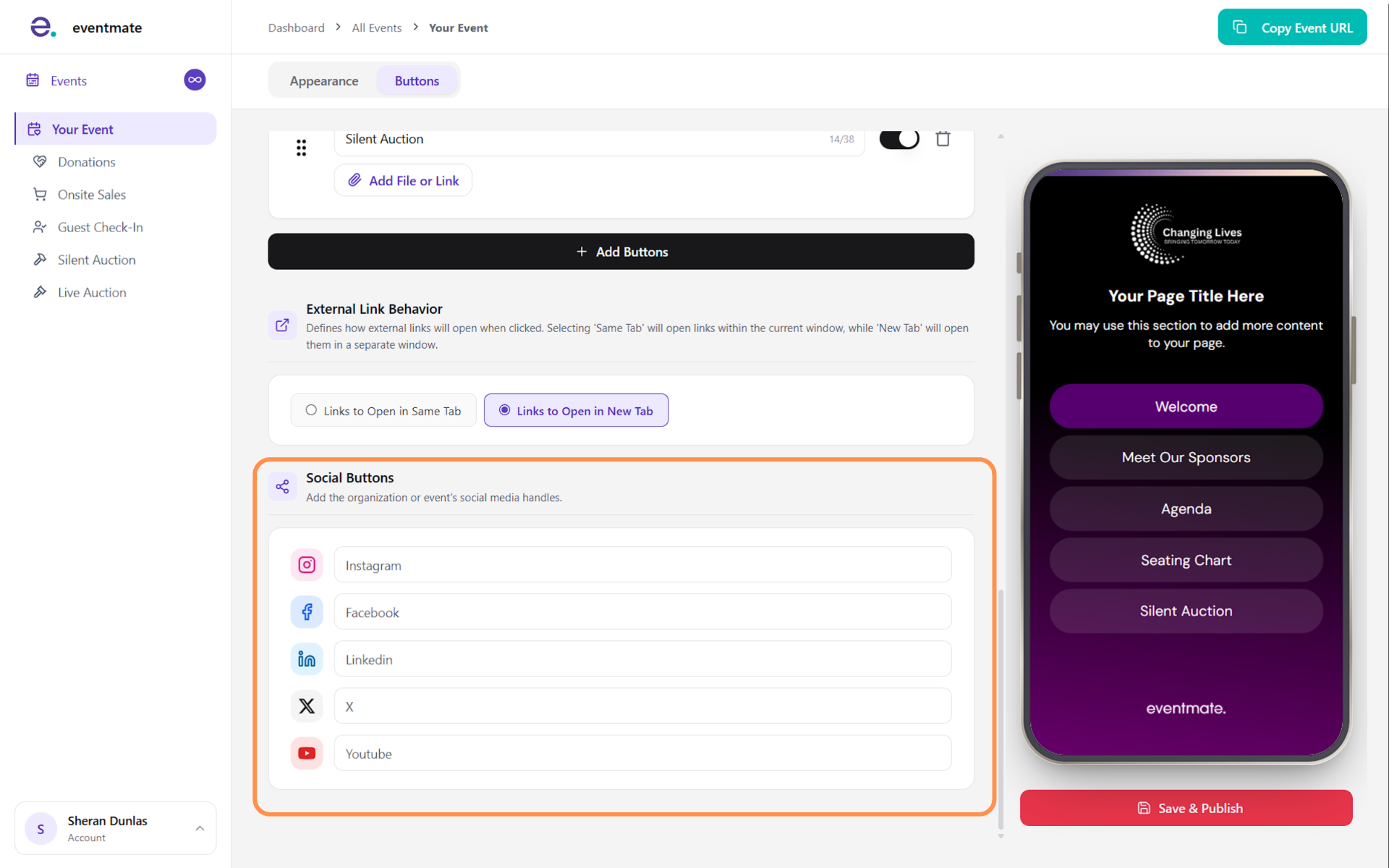
Adding social links
The Social Links section lets you connect your social media to the page. Supported platforms: Instagram, Facebook, LinkedIn, X (formerly Twitter), and YouTube. Buttons without a URL won't be visible.