Live Auction
Collecting payments during your auction
Record winning bids and collect payment live from any device.
Your live auction dashboard
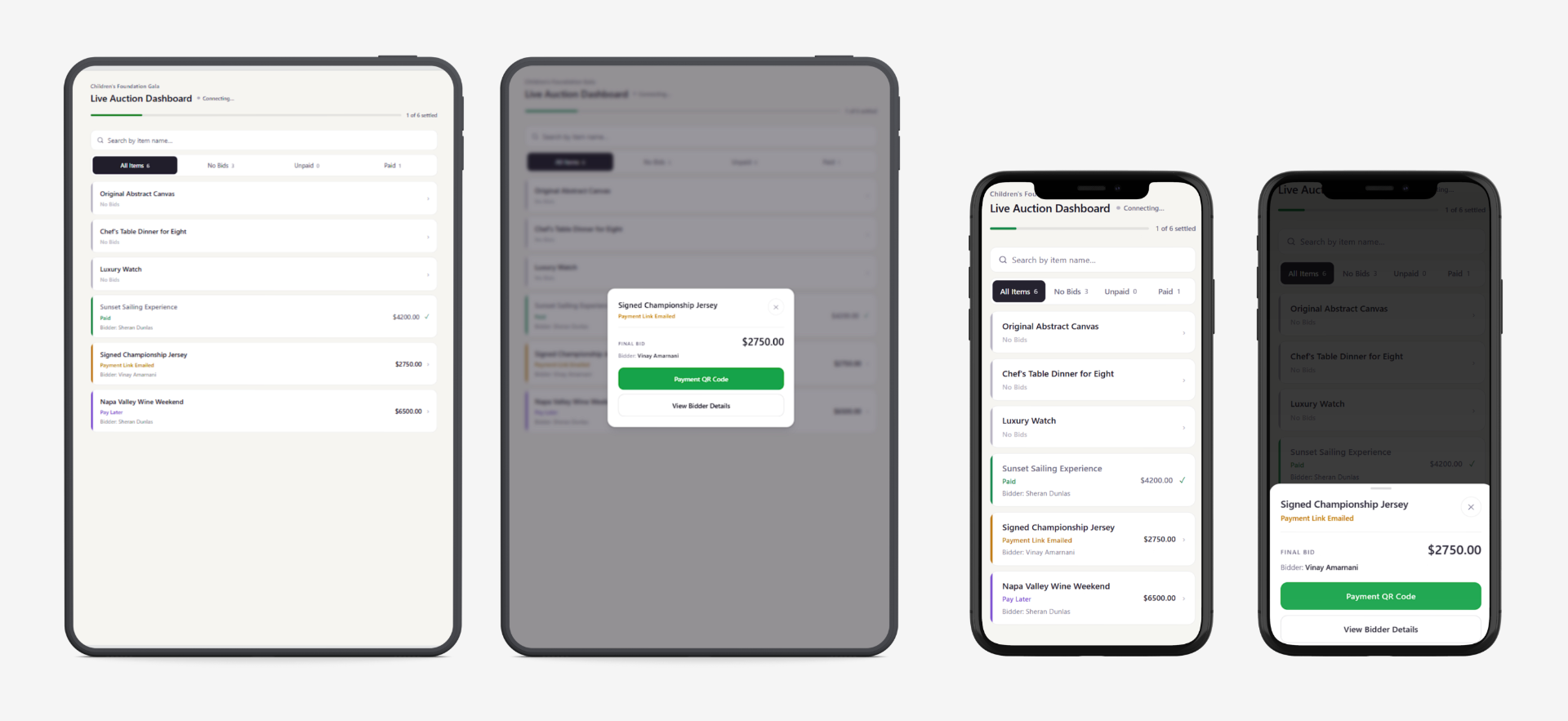
The Live Auction Dashboard is a separate view built for the event itself, designed to be used on phones or iPads by your on-site team.
Accessing the live auction dashboard
To access it, click the Live Auction Dashboard button in the top-right corner of the Live Auction Items tab, enable the link, then copy and share it with your staff. There's no app to install — it opens right in a browser.
Recording the winning bid
When an item sells, the winning bid is entered from the Live Auction Items tab in-app. Click Place Winning Bid on the item and enter the final amount.
Once recorded, the Live Auction Dashboard generates a QR code for that item.
Collecting payment on the spot
With the bid recorded, your on-site staff have two ways to collect payment from the Live Auction Dashboard:
- Scan to pay: Open the item's QR code and show it to the winner, who scans it and pays on the spot.
- Collect bidder information: Enter the bidder's name, email, phone, and company (optional). From here you can email them a payment link to pay later, or simply save their details so the organizer can follow up directly.
Letting staff enter bids from the live auction dashboard
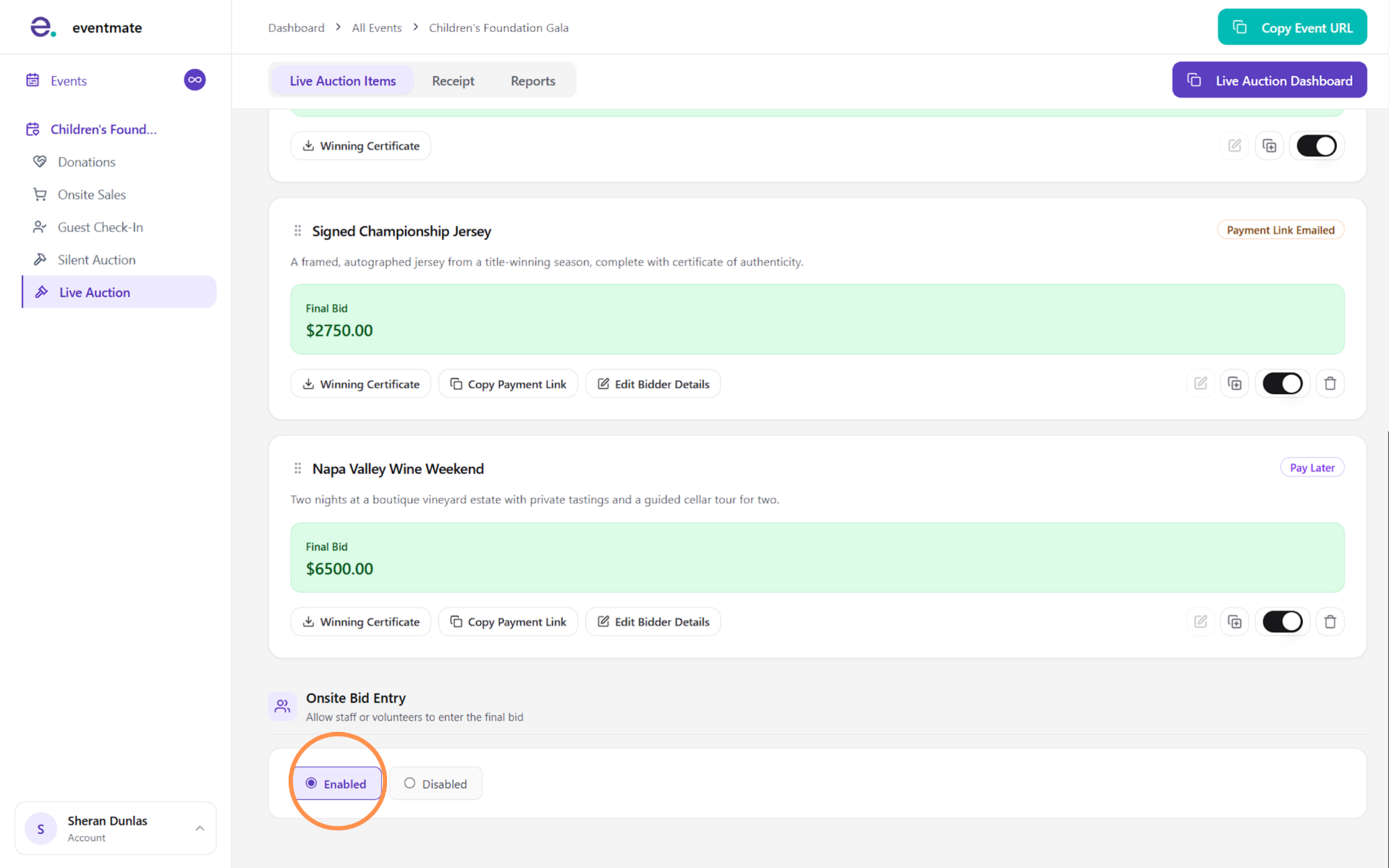
By default, winning bids are placed from the in-app Live Auction Items tab. If you'd rather your on-site staff record bids themselves, enable On-site Bid Entry in the Live Auction Items tab.
With this on, staff can enter the final winning bid directly from the Live Auction Dashboard — no one needs to be working in-app.
Managing bids from the backend
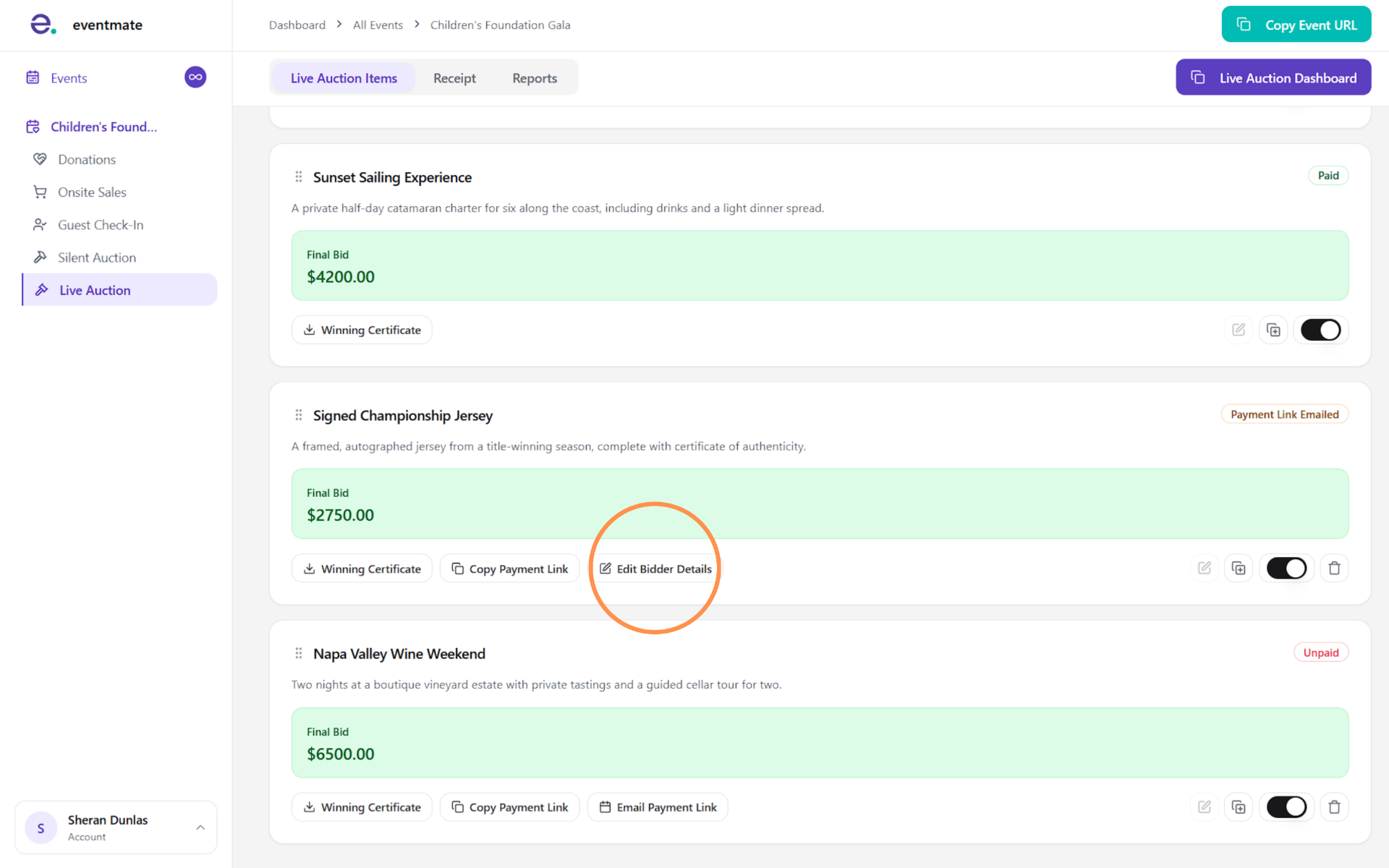
You can also handle payment tasks in-app from the Live Auction Items tab: copy and send a payment link, and edit or add bidder details.
Note that QR codes are only generated on the Live Auction Dashboard, not in-app.
Editing bidder details
If a bidder's details need to be changed, this can only be done in-app.
Go to the Live Auction Items tab and click Edit Bidder Details.