Donations
Live donation progress
Show a real-time totalizer during your event.
Designing your live donation page
The live donation page is the display shown on screens during your donation moment. To set it up, configure the following:
- Logo: Your uploaded logo will appear on the page.
- Fundraising goal: The target your organization is working toward for a specific event or cause. The progress bar style uses this to track progress.
- Donation amount visibility: Select Hide Amount to conceal amounts, or keep them visible to display them alongside the donor's name.
- AI Donor Filtration: Best suited to public fundraising events, this filters out spam content from the public.
- Goal page style: Select the display style you'd like to use. We currently offer three options, detailed below.
Goal page: Progress Bar style
The Progress Bar style blends classic and modern design to display your donation progress. It shows the donor name, amount, and progress toward your goal. Choose one of our predefined themes, or use the custom option to add your own branding.
The on-screen content options for this style are:
- On-screen title: Displayed below the amount raised.
- QR code: Directs viewers to your event's landing page.
Goal page: Spotlight style
The Spotlight style is a modern design built around simplicity and elegance. Its options include:
Background: Upload an image of your choice or apply a gradient color.
**On-screen content:
**- On-screen title: Shown above the amount raised — enter your event name here if you'd like.
- On-screen subtitle: Displayed just below the amount raised.
- Top Supporter: Highlights your highest donor, shown at the top and automatically updated whenever a new top donor comes in. You can rename this field's title.
- QR code: Lets guests scan to visit your event page.
Raised total effect: The background style displayed behind the amount raised. Clean removes any background so only the amount is visible, Frosted Panel places a glassy rectangle behind the amount, and Celebration Ring adds an animated ring that circles behind it.
Use the Colors section to customize the color of the on-screen title, subtitle, amount raised, donor name and amount, Top Supporter title, and QR code.
Goal page: Momentum style
The Momentum style is our simplest option, ideal if you prefer not to display the donor name or their donation amount. Its options include:
Background: Upload an image of your choice or apply a gradient color.
On-screen content:
- On-screen title: Shown above the amount raised — enter your event name here if you'd like.
- On-screen subtitle: Displayed just below the amount raised.
- QR code: Lets guests scan to visit your event page.
Raised total effect: The background style displayed behind the amount raised. Clean removes any background so only the amount is visible, Frosted Panel places a glassy rectangle behind the amount, and Celebration Ring adds an animated ring that circles behind it.
Use the Colors section to customize the color of the on-screen title, subtitle, amount raised, and QR code.
Displaying your live donation page on screen
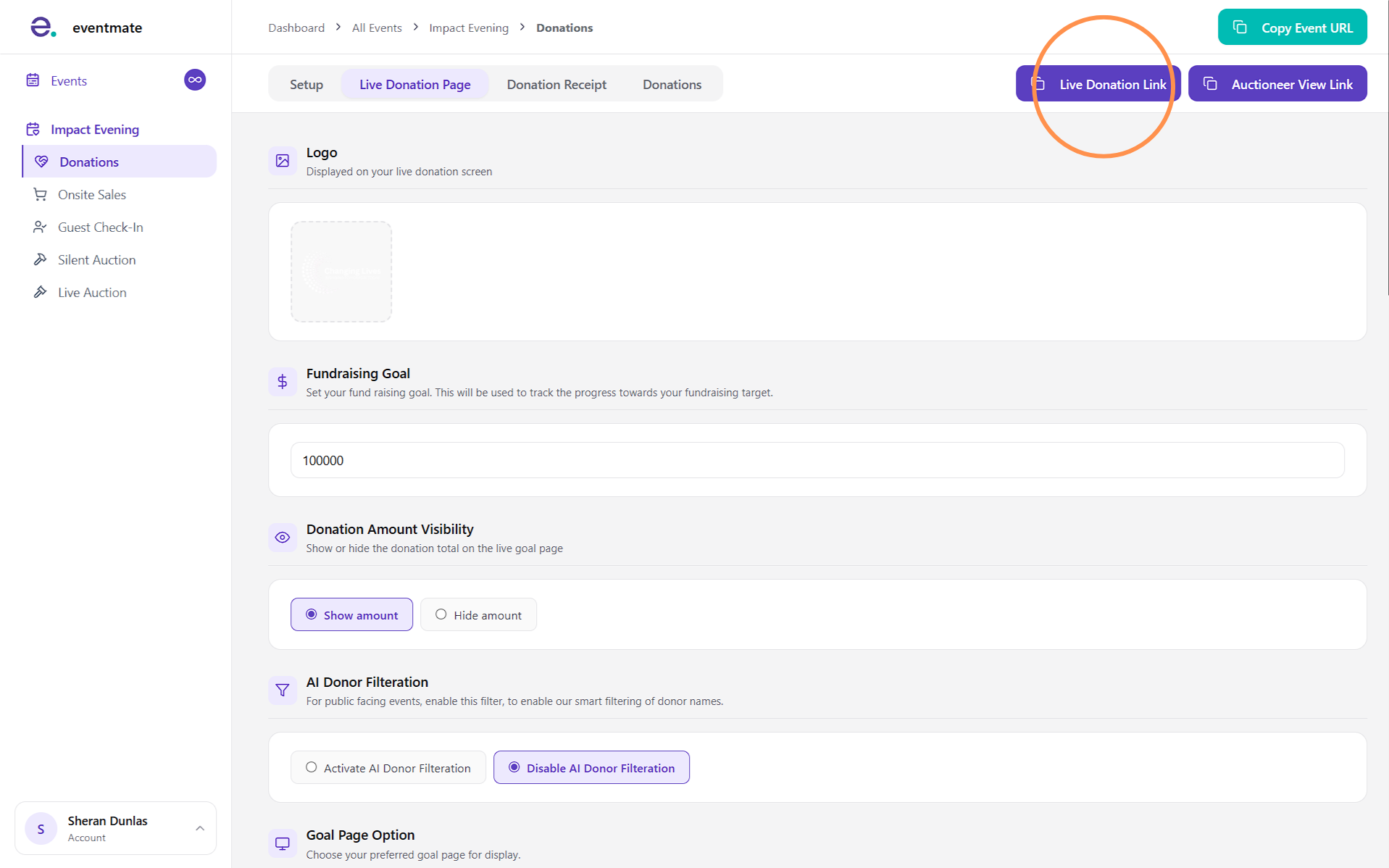
Click the Live Donation Link button in the top-right corner to copy the link to your live donation page, which you can then share with your AV team or whoever is displaying it on screen. For best results, open the page in a web browser (Chrome recommended) and switch to full screen.
Our goal pages are designed to fit all screens, but you can use your browser's zoom option to adjust the fit if needed.
Sharing the auctioneer link
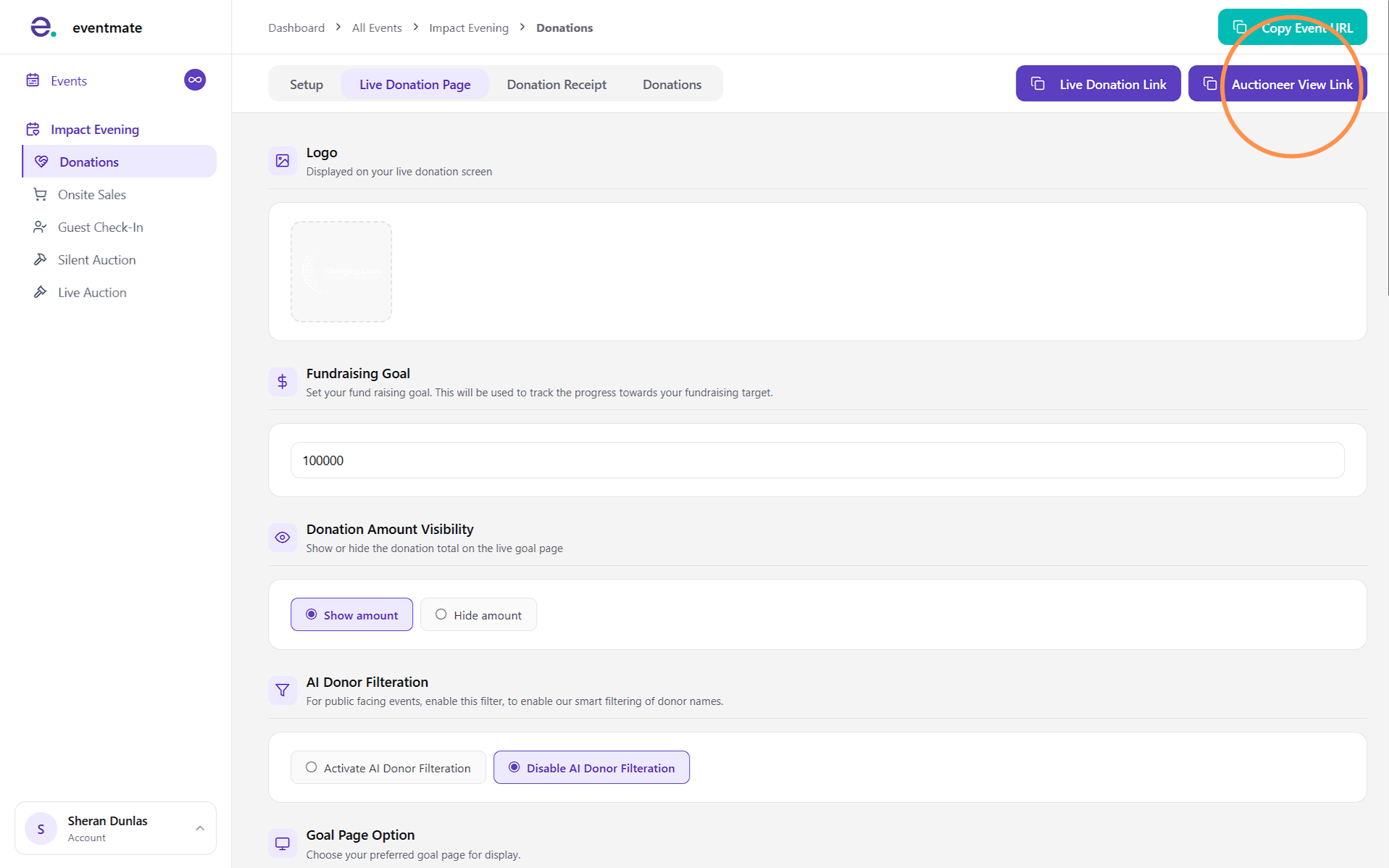
Click the Auctioneer Link button to copy a link designed for the auctioneer or MC running your donation moment.
They can open it on their phone or iPad to view live details and encourage guests to give more, helping build momentum in the room.