Silent Auction
Adding your auction items
Build your catalog with items and spotlight cards.
Adding an item manually
Click Add Item and fill in the details.
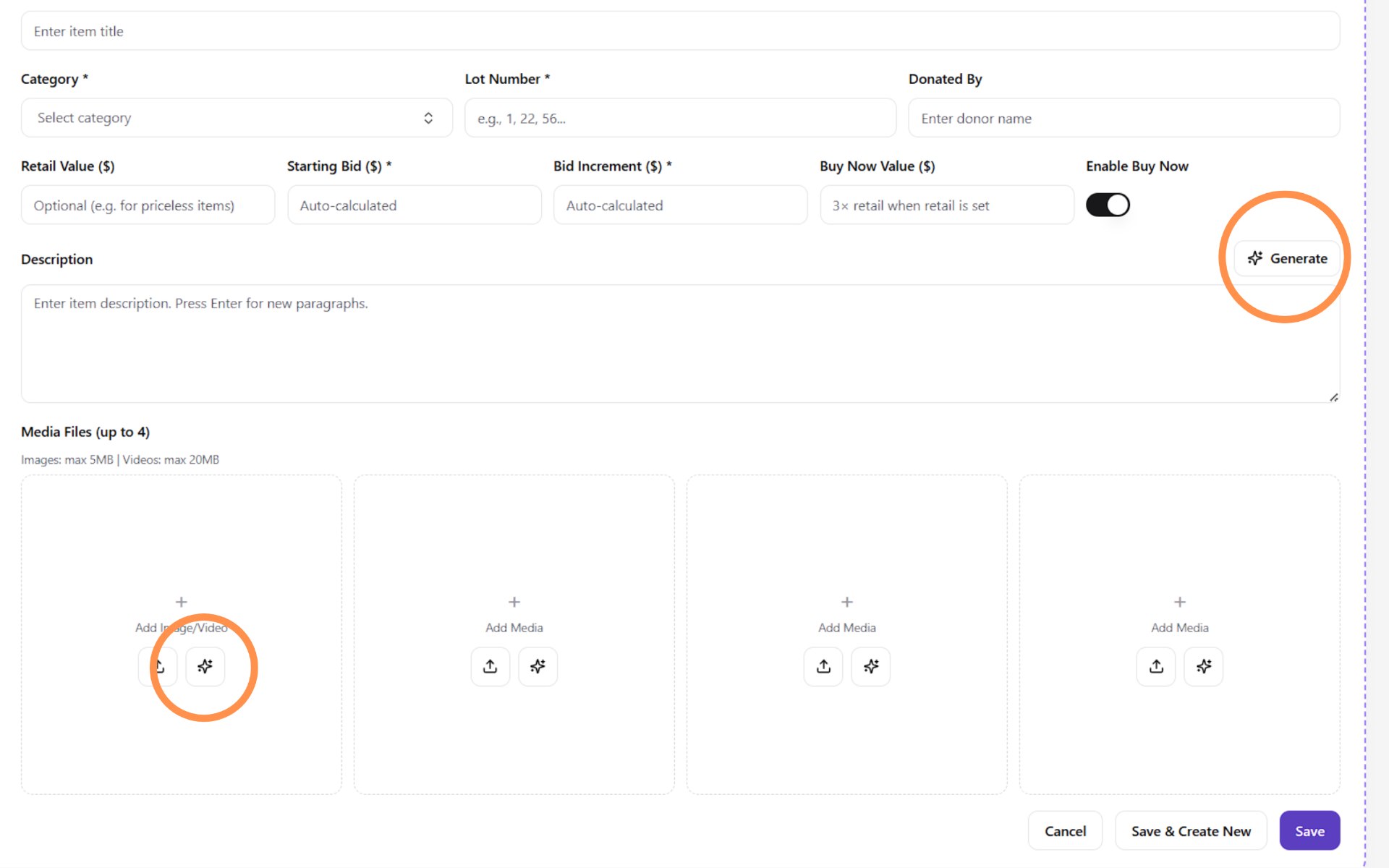
Title and Category are required. You can also set the lot number, who the item was donated by, retail value, starting bid, bid increment, and Buy Now value.
As you enter a retail value, the starting bid and increment auto-fill from your setup percentages, but you can change them to anything you like.
You can add up to four media files (images or videos), with images up to 5MB and videos up to 20MB. When you're done, click Save, or use Save & Create New to immediately start another item without reopening the form.
Using AI to generate descriptions and images
When adding an item, you can use eventmate's AI features to speed things up. Click Generate next to the description field to create item copy automatically, or use the sparkle icon on a media box to generate an image.
It's a quick way to fill out your catalog without writing everything from scratch.
Setting up Buy Now
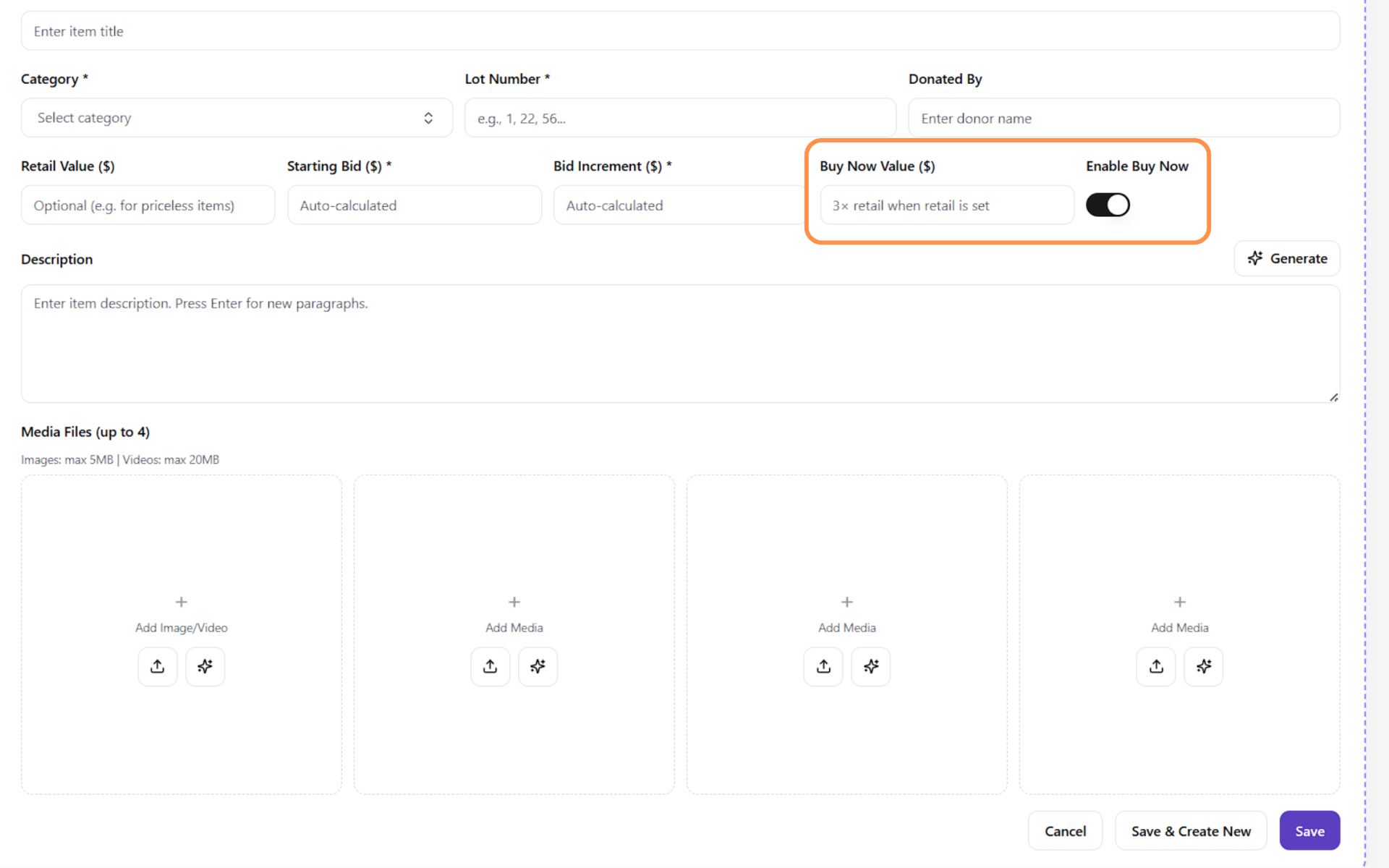
Buy Now lets a bidder purchase an item outright at a fixed price, without entering a bidding war. It's enabled by default on every item, and the Buy Now value defaults to 3× the retail value when a retail value is set.
You can adjust the price or turn Buy Now off for any individual item using the Enable Buy Now toggle.
Adding a spotlight card
A spotlight card isn't an auction item — it's a way to recognize a sponsor or display a promo between your items.
Click Add Spotlight Card, give it a name (for your reference only), upload an image (1080×1080px, max 5MB), and optionally add a link. If you add a link, clicking the card opens it in a new tab; without one, clicking opens the image full-screen.
Importing items from a CSV
To add items in bulk, click Import Items, then Download CSV Template and fill it in. Title and Category are required for every row. For pricing, each item needs one of two things:
- A retail value, which lets the system calculate the starting bid and increment from your setup percentages, or
- A starting bid and bid increment, if the item has no retail value.
One of these two must be filled in for each item, or the upload won't go through. You can also add media by pasting a Google Drive link into the media columns (up to four per item) — just make sure the link is set to "anyone with the link can view."
For Buy Now, enter true or false in that column; leaving it blank defaults to true (on).
When uploading, you'll choose between Add to existing (adds these items to your current list) or Replace all (removes everything and replaces it with your file). This choice only appears once you already have items in your list.
Arranging and managing your items
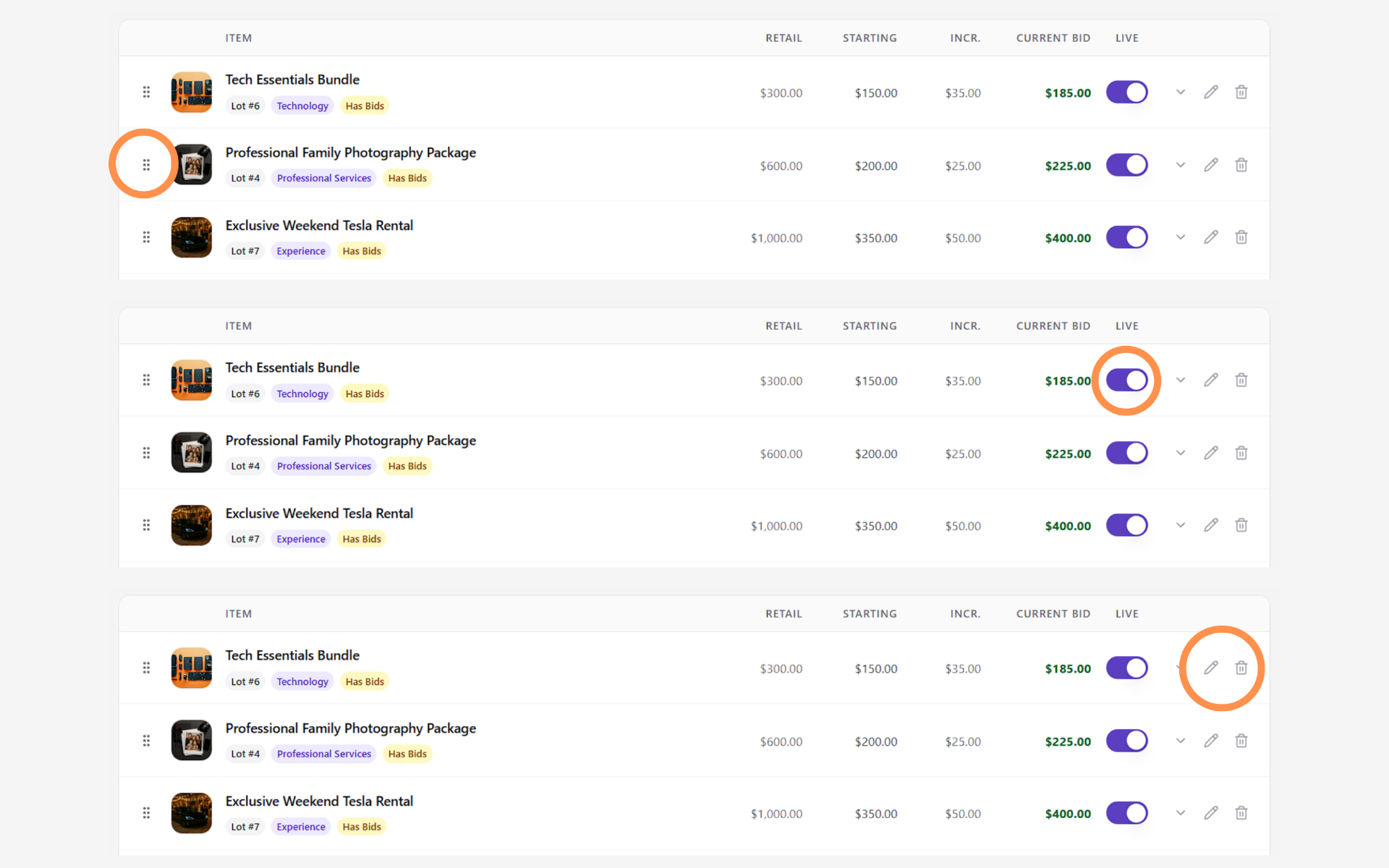
You can drag and drop items and spotlight cards to arrange your catalog exactly how you want it displayed. Each item also has a toggle to control its visibility — turning it off hides the item from your public silent auction page.
Items can be edited any time before they're purchased or before the auction ends. Once an item is bought and paid for, it becomes Locked, meaning no further changes can be made to it.