
Silent Auction
Setting up receipts and notifications
Configure compliant receipts and the emails your bidders receive.
Setting up your receipt details
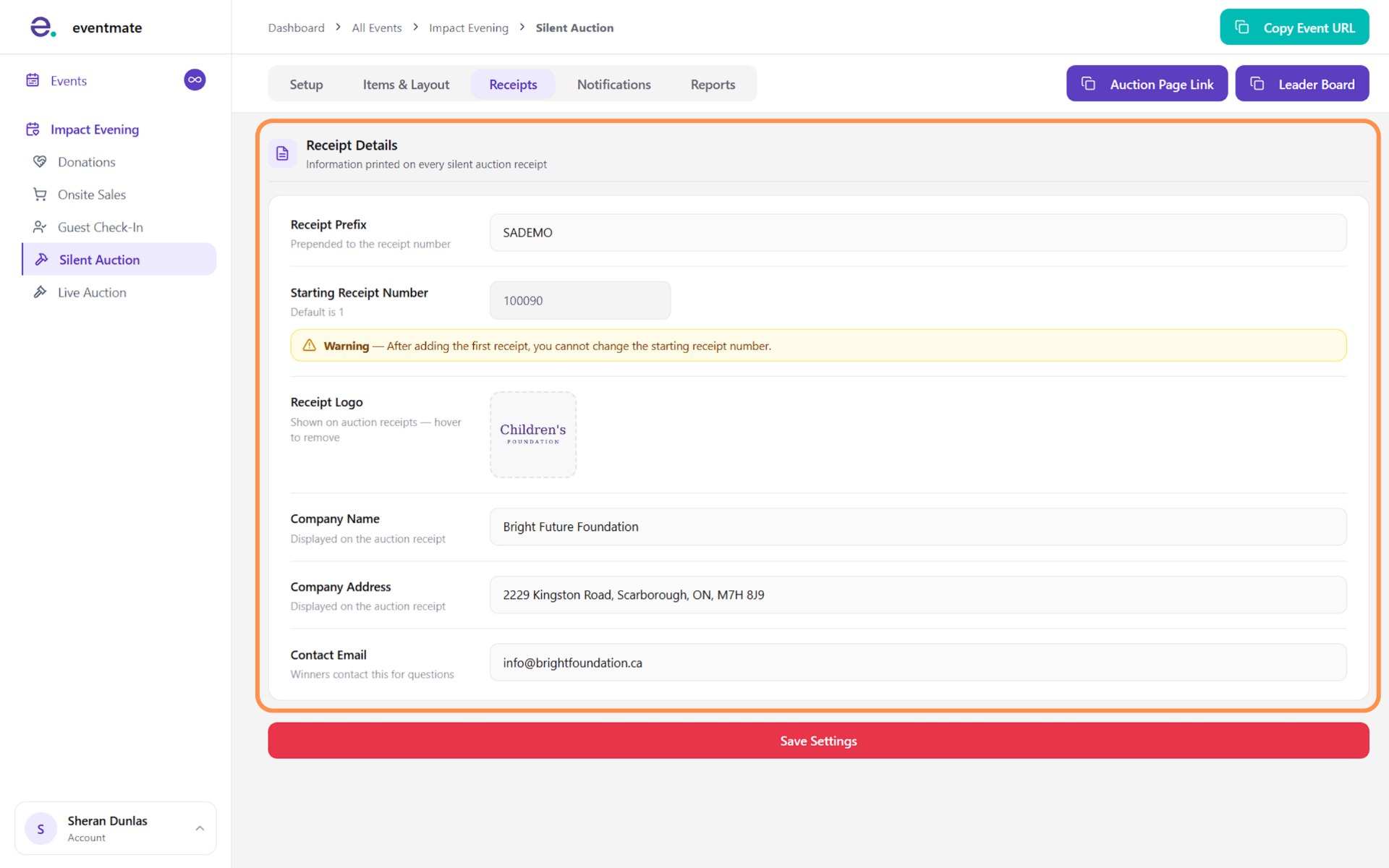
Open the Receipts tab and complete the following so your auction receipts are compliant:
- Receipt prefix: Added to the front of your receipt numbers.
- Starting receipt number: The number your receipts begin from (default is 1).
- Receipt logo: Shown on your auction receipts.
- Company name
- Company address
- Contact email: Where winners reach you with questions.
Click Save Settings when you're done.
Note that your receipt and notification setup work together — the logo, company details, and contact email you enter here also carry into your notification emails.
Setting up your notifications
The Notifications tab is where you manage the automated emails and texts your bidders receive throughout the auction. Each notification comes with a ready-made default template, so you don't have to write anything — but you can edit the subject and message to suit your event. Email is enabled by default; enable SMS on any notification if you'd also like to send it by text.
If you do edit a message, be sure to keep the variables (like {{bidder_name}} or {{item_name}}) intact and correctly placed, since these auto-fill each bidder's details. The available notifications are:
- Bid Placed: Confirms to bidders when they successfully place a bid.
- Outbid: Alerts bidders when someone outbids them on an item.
- Max Bid Update: Notifies a bidder when their max bid is used automatically to keep them in the lead.
- Item Bought: Confirms to a purchaser when they complete a Buy Now purchase.
- Reminders: Sends a reminder before the auction closes.
- Auction Won: Notifies winners when they win an item.
- Item Removed: Alerts bidders when an item they bid on is removed.
- Custom Message: Send your own message to a chosen audience (see next step).
- Notification Logs: View a history of every notification that's been sent.
Sending a custom message
The Custom Message option lets you send your own message to bidders whenever you need to.
You can send it to all bidders, to bidders in a specific category, or to bidders on a specific item. You can also schedule it for later or send it right away.