Silent Auction
Setting up your auction
Configure your auction page, timing, and bidding rules.
Adding your page details
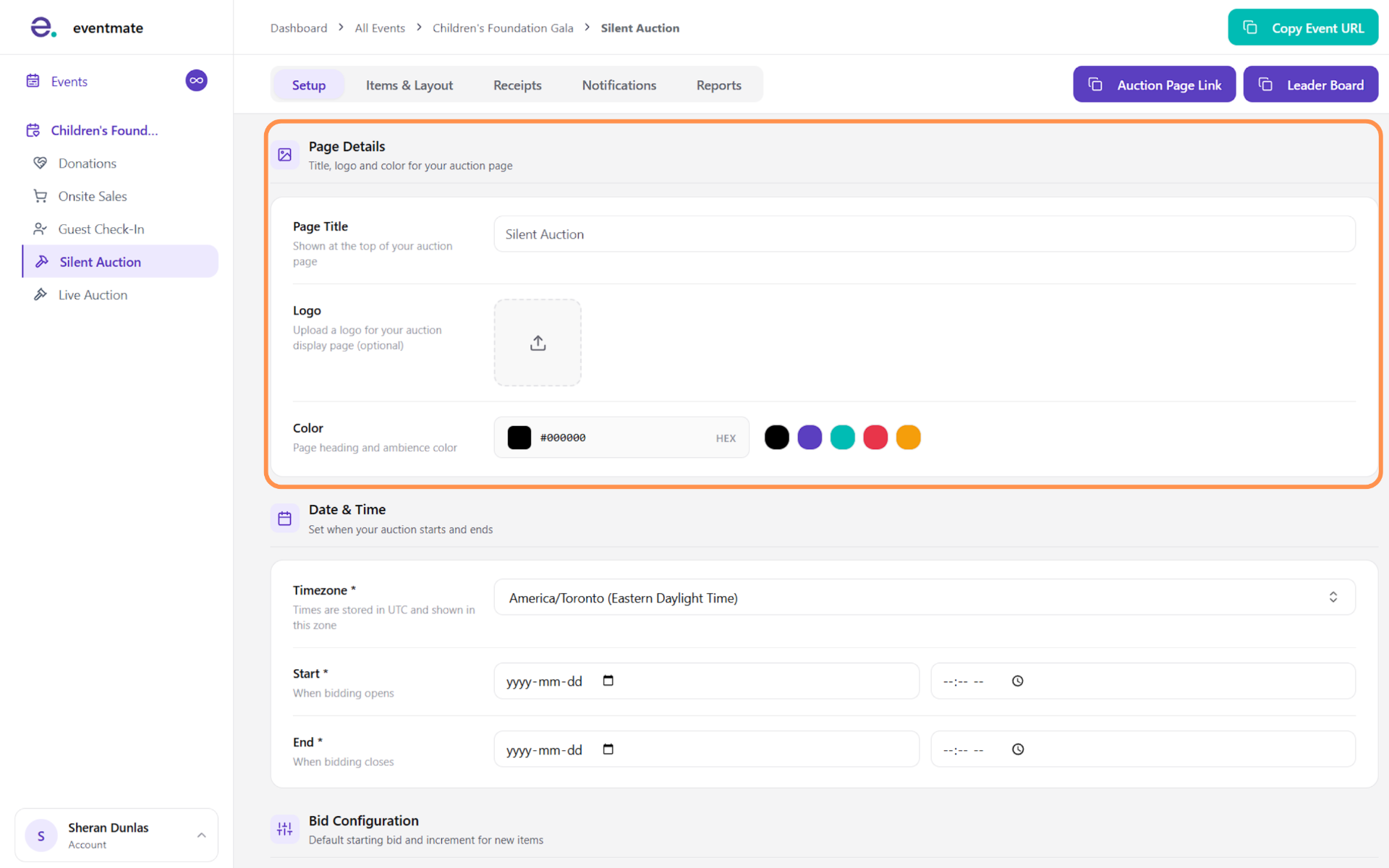
Under Page Details, set the title shown at the top of your auction page, upload a logo (optional), and choose a page color for your headings and overall accent.
This is where your auction page gets its branding.
Setting your date and time
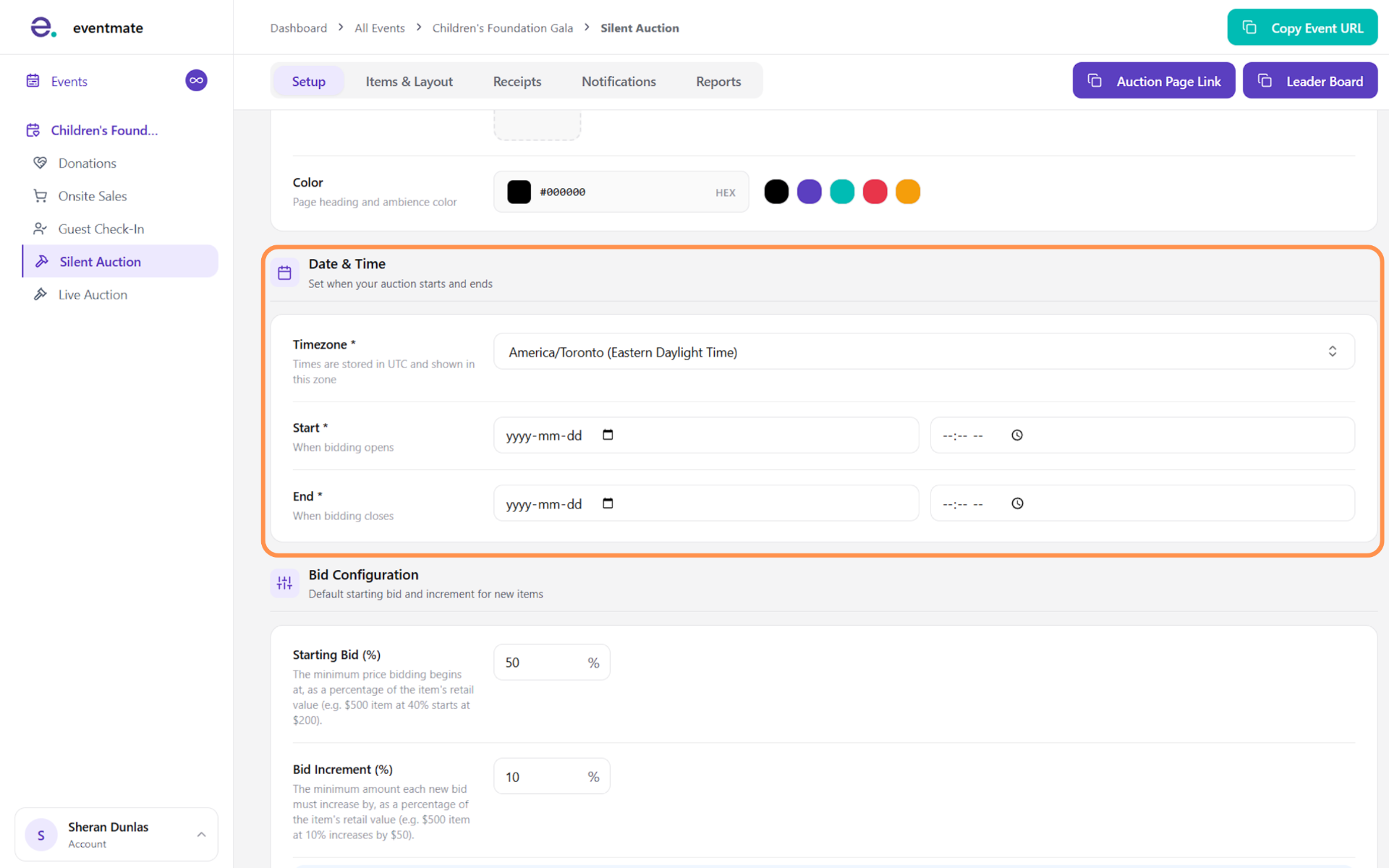
Under Date & Time, pick your time zone, then set the Start (when bidding opens) and End (when bidding closes).
Configuring your default bids
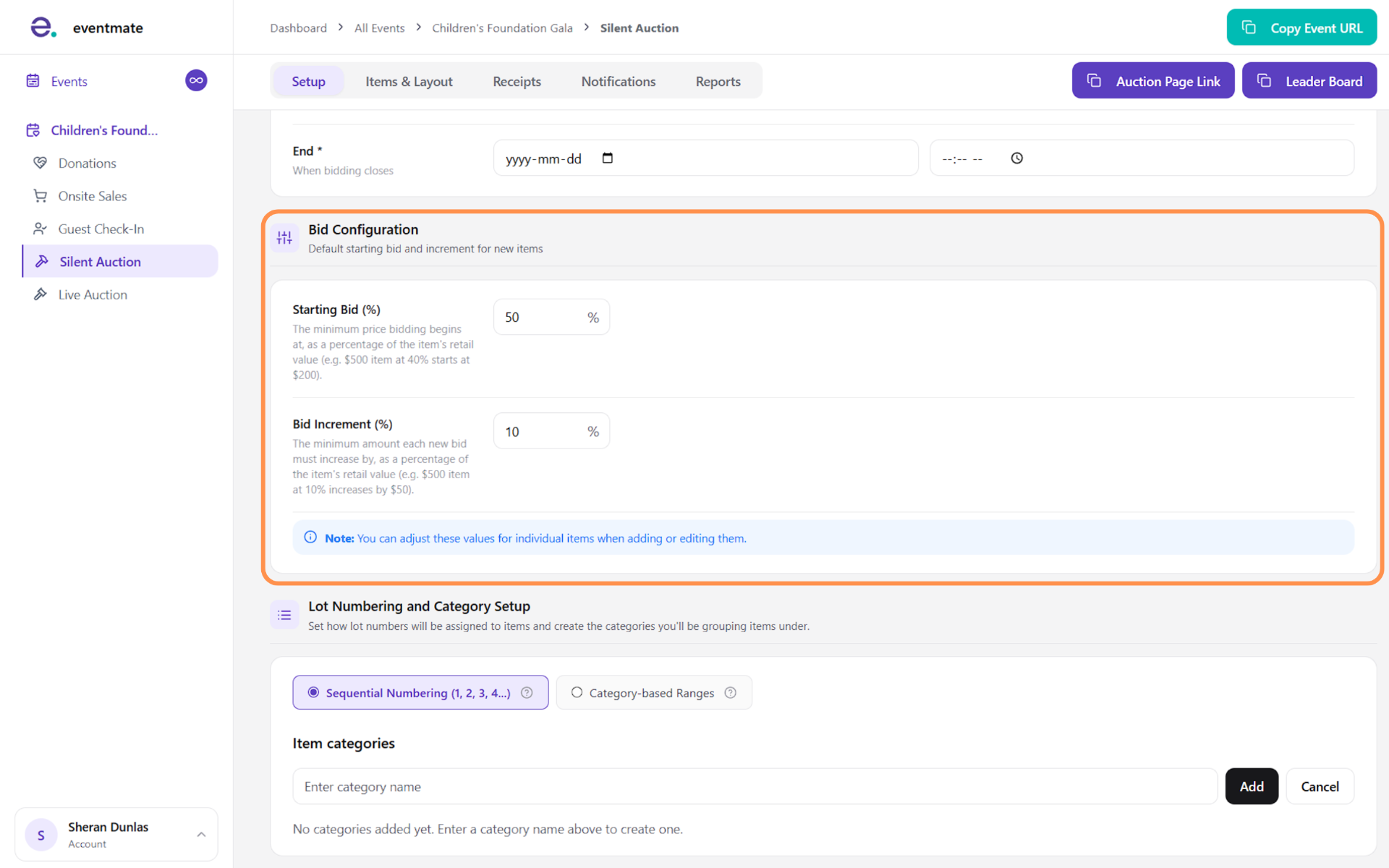
Under Bid Configuration, set a default Starting Bid (%) and Bid Increment (%), both calculated as a percentage of each item's retail value.
These are just defaults to make adding items faster — when you enter an item's retail value, these percentages auto-fill its starting bid and increment, and you can override them for any individual item.
Setting up lot numbering and categories
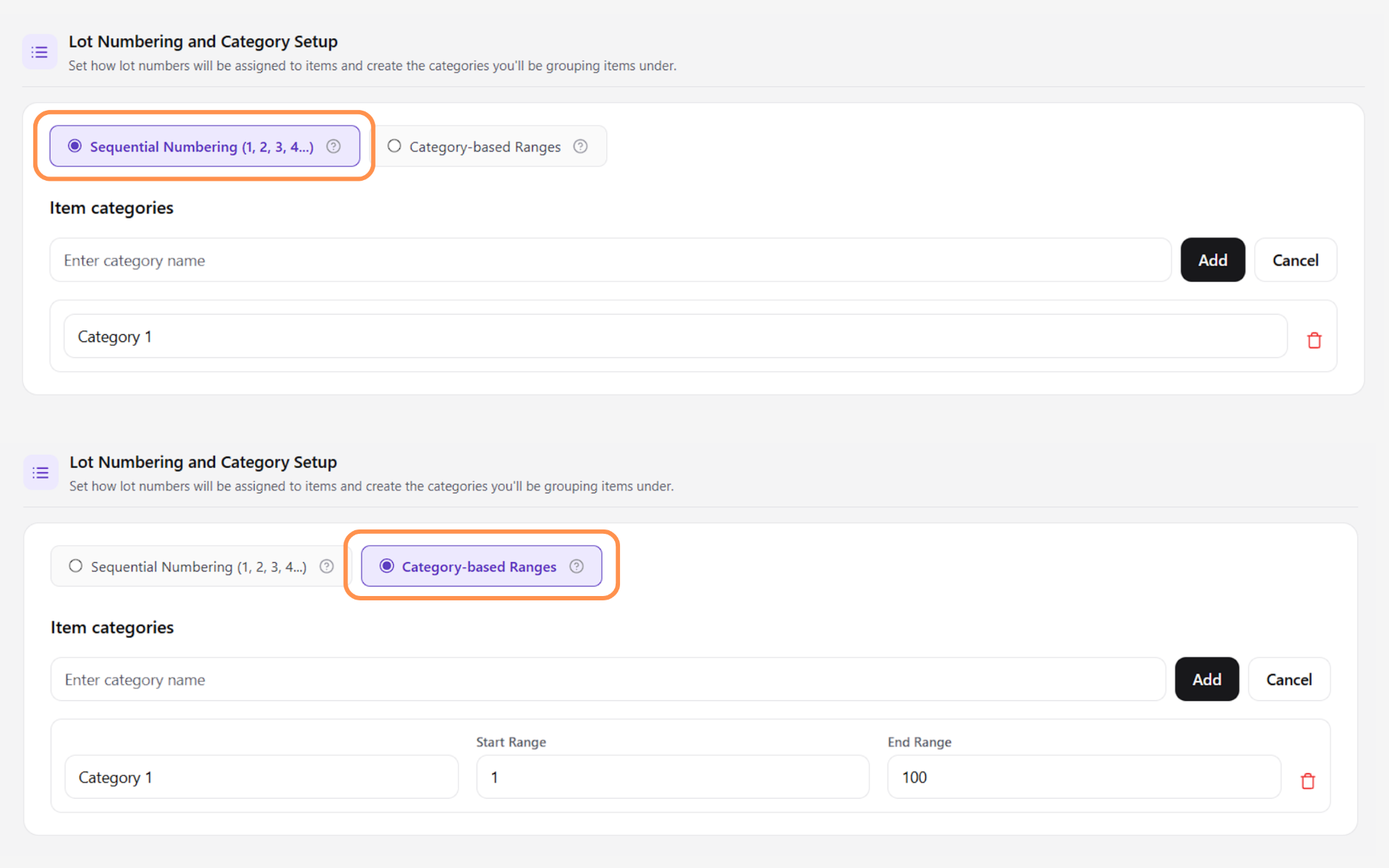
Under Lot Numbering and Category Setup, choose how lot numbers are assigned and create the categories you'll group items under:
- Sequential Numbering: You create your categories, and lot numbers are assigned in order (1, 2, 3…) as items are added.
- Category-based Ranges: When you create a category, you also set a starting and ending lot number for it. Any item added to that category must have a lot number within its range — numbers outside the range aren't allowed for that category.
Once everything is set, click Save Settings.